Capture a screenshot or recording, then annotate, pin references, recognize text and QR codes, sample colors, trim video, and organize local media in one focused toolkit.
Screen content is processed locally and stays on your Mac unless you choose to share it.
Screenshot & annotationMP4 & GIF recordingVideo trimmingmacOS 14 or later
ONE SHORTCUT, ONE FLOW
From screen to a ready-to-use result
Selection, annotation, and delivery stay together so a screenshot does not become another cleanup task.
Start a capture
Use the menu bar or your global shortcut, then choose a window or draw the exact region you need.
Copy, save, pin, recognize text, sample a color, or continue into a scrolling capture.
From capture to a ready-to-use result
Capture stills or motion, turn pixels into useful information, and keep every result organized in one focused workflow.
Capture & annotate
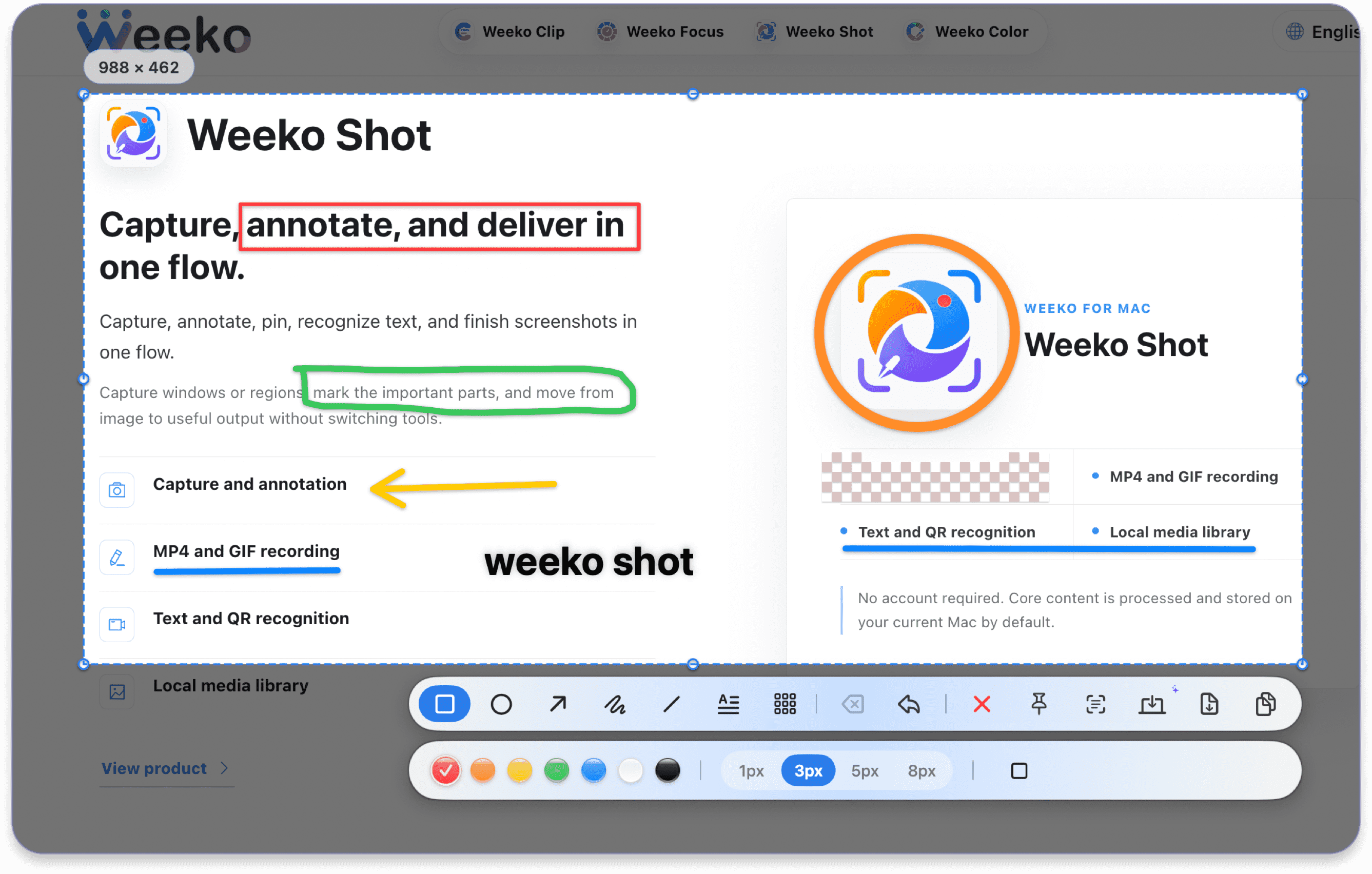
Select any display, window, or region, then refine it with shapes, text, drawing, and mosaic.
MP4 & GIF recording
Record a region, display, or app window with precise frame-rate, cursor, audio, and countdown controls.
Video trimming
Preview a recording, set exact in and out points, and save a trimmed copy with its original audio.
Scrolling capture
Scroll downward while overlap detection builds a clean image up to 15,000 pixels tall.
Text & QR recognition
Recognize mixed-language text locally and open links or copy text found in QR codes.
Pinned references
Keep multiple images above every workspace, zoom them, and switch between the image and recognized text.
Image editing & markup
Reopen library images, add precise markup, and save a polished copy without leaving the workspace.
Media library
Search, filter, preview, import, share, trim, and batch-manage images, videos, and GIFs.
Capture & annotate
Select any display, window, or region, then refine it with shapes, text, drawing, and mosaic.
Capture & annotate
Select any display, window, or region, then refine it with shapes, text, drawing, and mosaic.
Scrolling capture
Scroll downward while overlap detection builds a clean image up to 15,000 pixels tall.
Text & QR recognition
Recognize mixed-language text locally and open links or copy text found in QR codes.
Text & QR recognition
Recognize mixed-language text locally and open links or copy text found in QR codes.
Pinned references
Keep multiple images above every workspace, zoom them, and switch between the image and recognized text.
MP4 & GIF recording
Record a region, display, or app window with precise frame-rate, cursor, audio, and countdown controls.
MP4 & GIF recording
Record a region, display, or app window with precise frame-rate, cursor, audio, and countdown controls.
Video trimming
Preview a recording, set exact in and out points, and save a trimmed copy with its original audio.
Media library
Search, filter, preview, import, share, trim, and batch-manage images, videos, and GIFs.
Media library
Search, filter, preview, import, share, trim, and batch-manage images, videos, and GIFs.
Image editing & markup
Reopen library images, add precise markup, and save a polished copy without leaving the workspace.
The details, when you need them
Open a section to verify every capture mode, limit, export option, permission, and system integration.
01
Screenshot
Capture across multiple displays; freely draw a region or click the app window detected under the pointer.
Move, resize, or redraw the selection with a pixel magnifier before capture.
Copy, save, pin, recognize text, or continue directly into scrolling capture.
02
Annotation
Add rectangles, ellipses, arrows, lines, freehand drawing, text, and mosaic.
Choose color, line width, text size, and solid fill; move or resize existing annotations.
Delete one annotation or undo the latest operation.
03
Scrolling screenshot
Select any scrollable area; new frames are collected only while scrolling downward.
Overlap matching removes repeated content while a live preview and current pixel height update.
Copy or save the result; upward scrolling is ignored and the 15,000 px limit produces a clear notice.
04
MP4 recording
Record a region, display, or app window at 24, 30, or 60 fps, with the pointer shown or hidden.
Record system audio and a selected microphone separately or together.
Disable countdown or choose 3, 5, or 10 seconds; view elapsed time and stop, cancel, discard, or open the editor at any point.
05
GIF recording
Record a region, display, or window at 5, 10, or 15 fps, with optional pointer display and countdown.
Limit output width to 480, 640, 720, or 960 px; larger sources scale proportionally.
Record for up to 20 seconds, then auto-generate and save the GIF to the media folder.
06
Video preview & trimming
Preview immediately, play or pause, click the timeline, and set both trim handles.
Nudge by 0.1 second, see the selected duration, and loop only the selection.
Save the full original or a trimmed copy; reopen library videos for non-destructive trimming with audio preserved.
07
Text & QR recognition
Select any area for high-accuracy OCR; copy automatically or save the recognized result.
Choose language from the system and add English fallback for Simplified Chinese, Traditional Chinese, and mixed content.
Recognize text in pinned images; open QR URLs directly or copy plain QR text.
08
Pinned screenshots
Float screenshots above other windows, Spaces, and full-screen apps; keep multiple references.
Zoom in or out, restore 100%, and switch between the image and recognized text.
Copy the image or text and save the pinned content to a local file.
09
Screen color picker
Read the pixel beneath the pointer with a magnifier and mouse-wheel zoom.
Confirm with a click, Space, or Return, then copy the color value automatically.
Store the color in recents and copy it again from the menu bar.
10
Media library
Scan a chosen folder and import images or videos; filter by date, large files, image, video, or GIF.
Search filenames; sort by date, name, or size; switch between grid and list with metadata and thumbnails.
Preview full screen, move between items, open, copy, share, reveal in Finder, select all, batch-trash, trim videos, or change the library folder.
11
Menu bar & recents
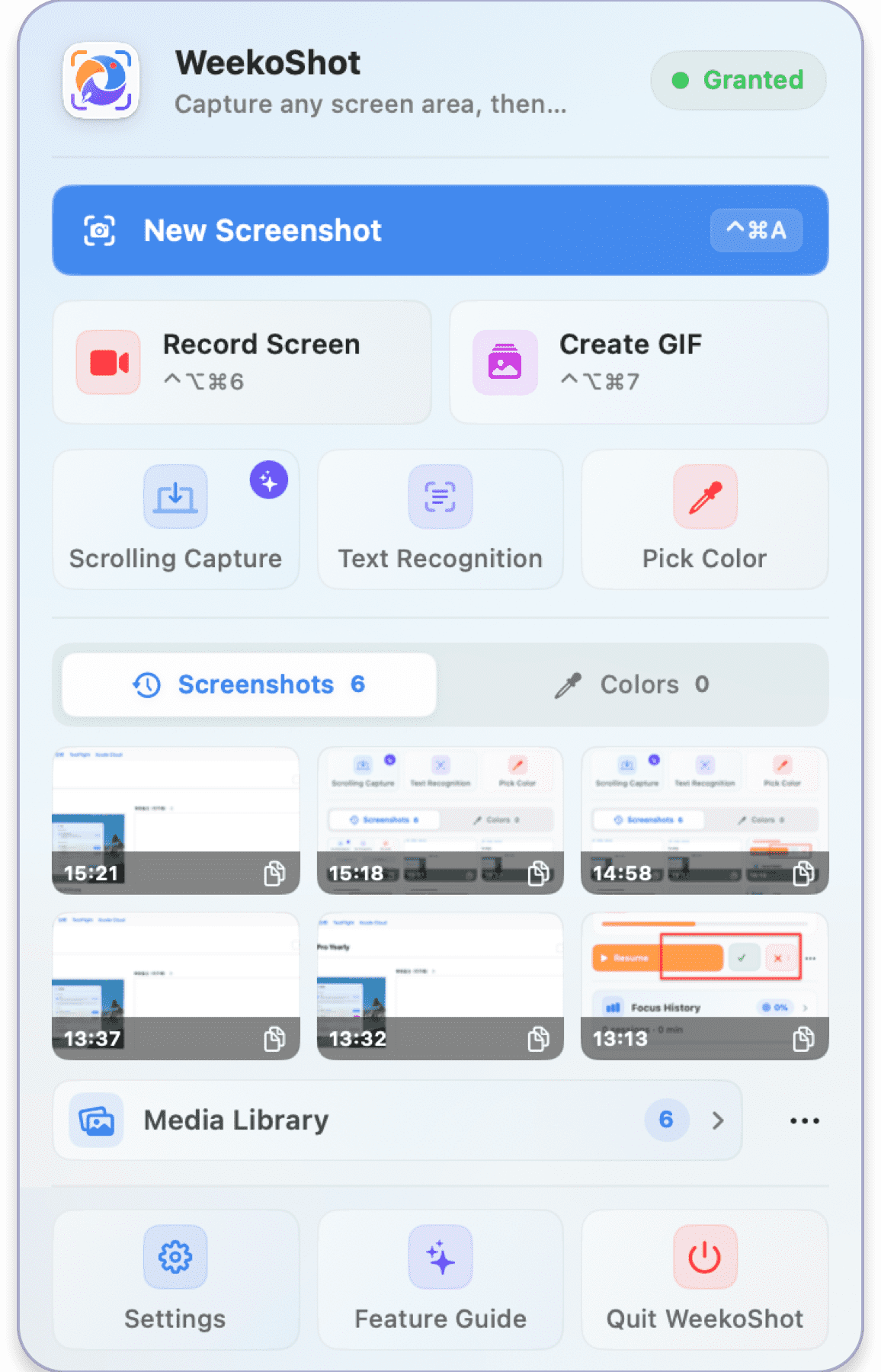
Start screenshot, MP4, GIF, scrolling capture, OCR, or color picking from the menu bar.
See recording state and elapsed time, then stop or discard without returning to the app.
Copy recent screenshot thumbnails and HEX colors, clear each history independently, or open the library, settings, and guide.
12
Settings & system
Launch at login, show or hide the Dock icon, choose app language, and customize capture/record/stop shortcuts.
Choose PNG or JPEG and quality, folder or save prompt, auto-copy, sound, floating thumbnail, and annotation defaults.
Check screen and microphone permissions, open System Settings, reset defaults, restore purchases, and choose annual or lifetime access on macOS 14+.
Core capture is free. Pro completes the production workflow.
Free includes screenshots, annotation, text recognition, color picking, one pinned image, basic MP4 and GIF recording, microphone audio, and library browsing. Pro adds the advanced capture, audio, editing, and library workflow.
Feature
FreeCapture, annotate, and record
ProCapture, edit, and manage
Screenshots, annotation, OCR, and color pickerIncludedIncluded
MP4 recording30 fps + microphone24 / 30 / 60 fps + system and mic audio
Image and video editingNot includedImage tools + video preview and trim
Media libraryBrowse and searchPlus import, filters, sorting, and batch actions
Pro is offered as an annual subscription or lifetime purchase through the App Store. Prices, availability, renewal terms, and purchase restoration are shown by Apple and inside Weeko Shot.
LOCAL BY DESIGN
Screen content stays on this Mac by default
Weeko Shot uses macOS screen access only to provide the capture action you start. It does not require a Weeko account or cloud processing.
Screenshots, recordings, audio, recognized text, QR results, and sampled colors are processed on this Mac.
Saved images go to the folder you choose; the app does not provide automatic cloud sync.
The feedback page includes basic version and system details, never screenshots or app settings.
Questions before the first capture
Why does Weeko Shot need Screen Recording permission?
macOS requires this permission for apps that capture windows, displays, or screen pixels. Weeko Shot uses it locally for the capture you initiate.
Does text recognition upload my screenshot?
No. The current recognition workflow processes the selected image locally and copies the recognized text on your Mac.
Where are screenshots saved?
You can choose a default folder or ask for a location each time. The image library works with the folder you authorize.
Can I change the shortcut and output format?
Yes. Settings include the global capture shortcut, PNG or JPEG output, JPEG quality, annotation defaults, auto-copy, sound, and thumbnail behavior.
Which recording permissions are required?
Screen Recording is required for visual capture. Microphone access is requested only when you enable it; system audio can be recorded independently.
What are the current recording limits?
MP4 supports 24, 30, or 60 fps. GIF supports 5, 10, or 15 fps, widths up to 960 px, and a 20-second maximum. Scrolling images support up to 15,000 px.